|
| Tip of the Week | October 8, 2012 Volume: 2 | Issue: 40 |
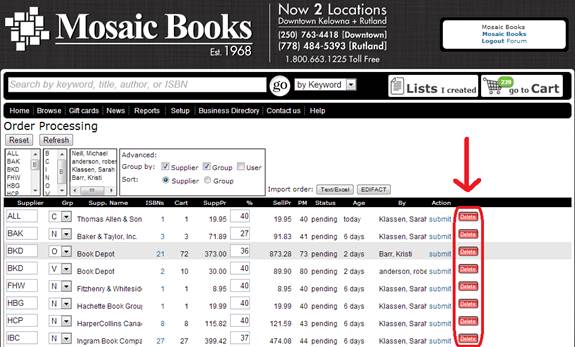
NEW FEATURE ALERT!
So no more clicking DELETE one by one on the individual items in the order, you can now simply DELETE the whole thing, if you need to. - - - - - - - - - - - - - - - - - - - - - - - - - - - - - - - - - - - How to Sell Tickets in your BookManager software 'Tis the time of year that many stores are approached to sell tickets for concerts or other community events for holiday season. Our store Mosaic Books is approached on a regular basis to sell tickets and we do so for most the events we are asked by. There are a couple reasons why, the first and best reason is all it is free advertising. In many cases, our name will be mentioned on tv, on the radio and in newspapers/magazines, and all around town in posters as a place "where tickets are sold". It also increases traffic in the store, usually by people that may have not come in otherwise (depending on the event). Sometimes a customer will pick up their tickets, and also buy a book or magazine at the same time. Up until now, we've never charged a service fee, but we are planning to implement this in the new year. Currently Mosaic Books has over 12 different events we they are selling tickets for, and while it is an easy transaction, it would be nice to make a dollar or two on each sale to pay for the time we spend to maintain each event. We've been approached by a few stores over the past few weeks about how to handle events and keep track of them in their BookManager software and we we thought many other stores might want to see how we do it... Start by adding the event to your Inventory...
Note: Keep in mind that you will have to discuss if the tickets are taxable or not with the people running the event. In most cases, Mosaic Books works with not profits or the tax is included in the price of the ticket. In some cases however, you will need to apply tax to the ticket which is why we have two ticket classes, one for non-taxable and one for tickets with HST. Another Note: When setting up your classes, it is a good idea to setup a account where all the money for tickets will come in and out of, especially if you use the accounts payable or general ledger. This will keep it from affecting your regular 140 inventory account. We use account 323.
The physical tickets are kept in an envelope with the BookManager ISBN (i.e. TK1), the name of the event, and any other information. Usually CASH ONLY appears on most of these envelopes to remind our front of house staff not to accept credit or debit cards, but more on that later.
Now its time to sell the tickets... Reporting and returning the tickets/money... The report gives a total number number of tickets sold, and the total dollar value. We count the remaining tickets to make sure the amount we have, added to the total we sold equals the total we started with. We now go into 7) Accounts Payable and create an invoice for the tickets sold. Press N for new and fill in all the information pertaining to the event. We like to keep the invoice number similar to the ISBN, adding an extra bit of information to help at a quick glance (i.e. TK13LARRY). The amount sold is then put to the 323 account. The invoice is then marked and paid from whatever account you wish.
The final step is to clear the current information so the ISBN can be used again for a new event. Some stores may decide not to recycle numbers, and this is fine too. Ignore this last step if you don't wish to use the same ISBN in the future. Go back into the inventory card for TK1, and edit the ISBN to TKOLD, which merges its history in with all other old tickets. Now TK1 is available to be used for your next event. We hope you decide to take advantage of selling tickets and adding the service to your community. If you have any neat tips or tricks for selling tickets or other community services let us know. As always if you need extra assistance, just give us a shout and we can have fun creating some events together.
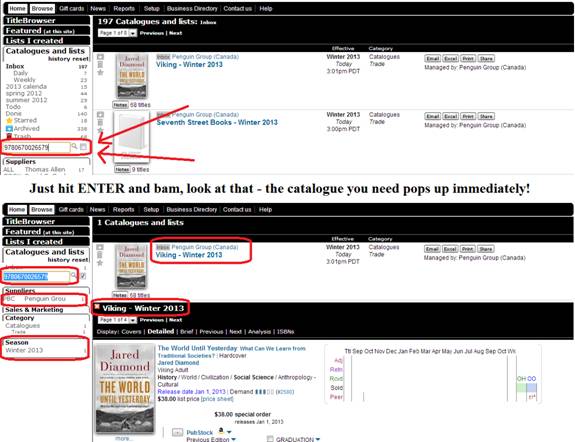
WebStore Tip! Search by ISBN for a specific catalogue. The catalogues and lists on your WebStores can be a daunting area, especially for those just starting to use it. Our goal in mind is always efficiency, so we create little ways for you to get in and start ordering from a catalogue in a matter of clicks. This tip is super helpful if say, your rep calls you up and says, "Hey, have you looked at such and such title on the new promotional list we just put up?" ... and you're thinking, 'Ok, how do I find that title to see what this lovely lady is talking about, and see whether I have ordered it?' Well, if you have the ISBN, you can simply key that in and bring up the specific catalogue they are referring to - and BAMO, look at you go! Assuming you are logged in, get to the catalogues and lists, by either clicking Staff Home Page from the Homedrop down menu, or Catalogues and Lists from the Browse drop down. There is a little empty box, with a cute lil' magnifying glass beside it - just pop the ISBN in there and hit ENTER. You should immediately be shown the catalogue from where that ISBN is from. That makes things a little bit speedier doesn't it?
Some of you may be super speedy pros at using the various headings on the left to navigate to which supplier and catalogue you want to order from, but we are sure you will find yourself using this all the time now that you know, since, it makes getting to where you need to be, that much quicker!
|
|